
Link LINE to your shop
Tellsell has one LINE Official Account for every shop. You add it as a friend and link your LINE account to your shop once. From then on the bot knows which shop your messages are for, and the menu under the chat appears by itself. There is nothing to set up in LINE.
Add Tellsell as a friend
Section titled “Add Tellsell as a friend”-
Open the account pages at
app.tellsell.appand go to the LINE section. -
Scan the QR code shown there with the LINE app on your phone. (If the account pages are already open on your phone, tap the add-friend link instead.)
-
Tap Add friend on Tellsell’s profile in LINE.
Link your LINE account to your shop
Section titled “Link your LINE account to your shop”If you signed up with LINE
Section titled “If you signed up with LINE”If you signed up with the same LINE account, it is linked the moment you add the friend. The bot greets you with your shop’s name and the menu appears.
If you signed up with email, or use another LINE account
Section titled “If you signed up with email, or use another LINE account”The bot doesn’t know your shop yet, so it sends a card with a link button. This message is in both Thai and English, because the bot doesn’t know your shop’s main language yet.
-
Tap เชื่อมร้าน · Link on the card.
-
The Tellsell account pages open inside LINE. Log in with the account you signed up with.
-
Confirm the shop to link. The account pages send you back to LINE by themselves; there is no code to type.
-
The bot answers Linked to … as owner. and your shop’s menu appears.
If you message the bot before linking, it sends the link card again.
Your shop’s menu
Section titled “Your shop’s menu”Once linked, tap Menu at the bottom of the chat to show or hide the menu. The menu is in your shop’s main language: English shops get the English labels below, Thai shops the same buttons in Thai.
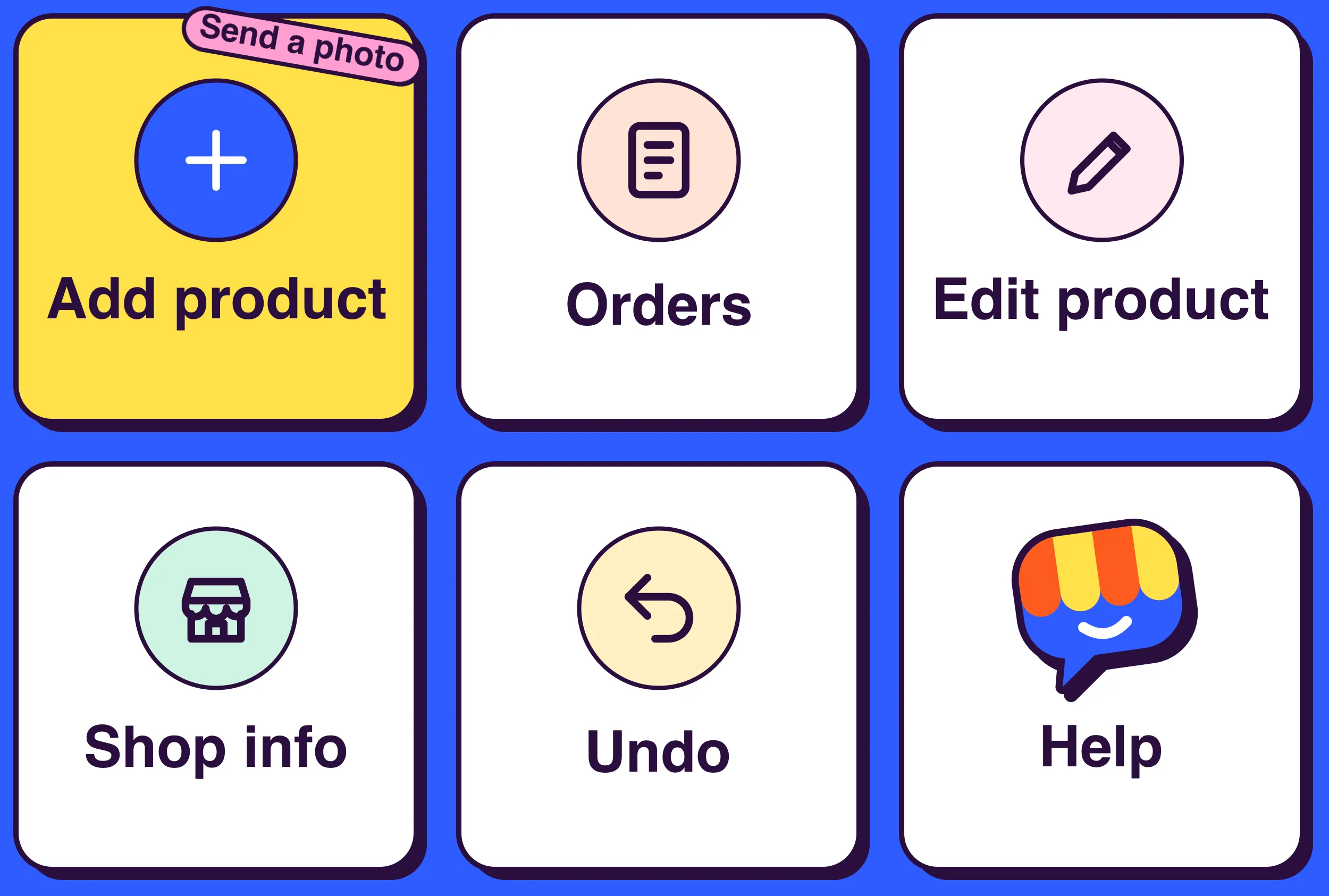
| Button | What it does | Who can use it |
|---|---|---|
| Add product | The bot explains how to send a new product. You can also just send a photo without tapping it. See Add a product with a photo. | Owner, staff |
| Orders | The orders that need you, most urgent first. See Orders in LINE. | Owner, staff |
| Edit product | Pick a product to change. See Edit and delete products. | Owner, staff |
| Shop info | Shows opening hours, address, phone and the banner line; then type what to change. | Owner |
| Undo | Takes back the latest change. See Undo. | Owner |
| Help | Short instructions and the instant LINE alerts of each plan. | Owner, staff |
Menu buttons never count as AI processes. When you tap one, its name appears in the chat as if you had typed it, for example “Orders”.
If staff tap Shop info or Undo, the bot answers Only the shop owner can do this.
The Help button answers with this message.
Add staff
Section titled “Add staff”Staff can help run the shop from their own LINE. The number of LINE users (owner + staff) depends on the plan.
| Plan | Free | Starter | Business | Pro |
|---|---|---|---|---|
| LINE users | 1 | 1 | 3 | 10 |
-
The owner invites a staff member from the account pages.
-
The staff member adds Tellsell as a friend in LINE and links the shop the same way as above.
-
The bot tells them Linked to … as staff.
Staff add and edit products, change stock and handle orders. Deleting products, shop info, the About page and Undo are for owners only. Instant LINE order alerts go to owners only.
If you have several shops
Section titled “If you have several shops”One account can run several shops. When your LINE is linked to two or more shops, the last tile of the menu splits into two buttons: Switch shop on top and Help below.
- Every message after this is for the chosen shop, until you switch again.
- The bot answers, and shows the menu, in the main language of the shop you are working on. If your shops use different languages, the menu changes language too.
- When you tap Orders, the bot names the shop first, for example Orders of Baan Ceramic.
- Order alerts come from all your shops. The Orders button in an alert always opens that shop’s orders, even while you are working on another shop.