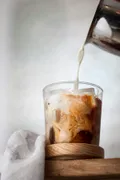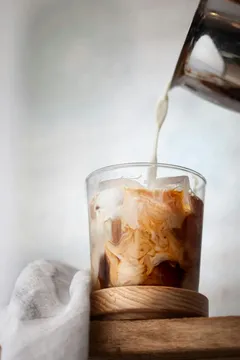
Add a product with a photo
The fastest way to add a product is a photo with a short message giving the name and price. The AI reads the photo and your words and writes a complete listing. This page explains what to send, what the AI writes and how photos are stored.
How to send
Section titled “How to send”-
Send the product photo in the Tellsell chat: one photo, or several picked and sent together.
-
Type the name and price after the photo (or send a voice note).
-
Check the preview the bot sends back, then tap Publish.
You can also send the text first and the photos after: the bot adds the photos to the same preview and sends it again.


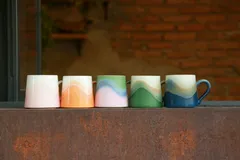
About photos
Section titled “About photos”- Several photos at once: photos picked and sent together count as one product. The bot waits for all of them, then answers once.
- Up to 10 photos per product. Beyond that, the bot answers A product can have up to 10 photos. and the extra photos are not used.
- Files up to 20 MB, and they must be images. Otherwise the bot answers That photo can’t be used (over 20 MB or not an image).
- Photo order follows when they were sent. The first photo is the main photo in the preview, in your shop and on product cards.
- The AI looks at the newest 3 photos at most to read the details. The other photos stay on the product as usual.
- No photo is fine too: a name and price alone make a product, but products with photos sell far better.
What to type with the photo
Section titled “What to type with the photo”The minimum is a name and a price. Add anything else you like, written the way you would say it.
| You type | What you get |
|---|---|
Iced latte 65 baht |
Name and price; the AI writes the description and picks a category |
put it under Thai desserts |
The product goes into the category you named |
sizes S M L |
One option group, the same price for every size. See Options and sizes |
5 left |
A stock count. See Stock and sold out |
no added sugar, sweetened with fruit |
The AI puts this in the description, because you said it |
handmade, every piece is different |
Things a photo can’t show have to come from you |
What the AI writes
Section titled “What the AI writes”| Part | How the AI does it |
|---|---|
| Product name | From your message, checked against the photo, in your shop’s main language. Brand and model names stay as they are, such as “Adidas football”. |
| Description | 1–3 short sentences that help a buyer: what it is, what it is for, visible things such as colour. No emojis, hashtags or price, and never just the name again. |
| Category | One of your shop’s existing categories when it fits; otherwise a new, short one. |
| Product link | A link name in Latin letters, such as /p/glazed-mug, or /p/khanom-chan for ขนมชั้น. Link names are unique within your shop; a number is added when needed. |
The AI never invents facts
Section titled “The AI never invents facts”The AI describes only what is visible in the photos or what you wrote. It does not guess brand, size, material, authenticity, origin or condition unless it is visible or stated. It does name what is clearly visible, such as “sliced roast beef, roast potatoes and gravy”, never vague words like “meat and vegetables”.
How photos are stored
Section titled “How photos are stored”At upload, Tellsell converts each photo once into three WebP files: 1600 px wide for the product page, 800 px for the shop grid and 400 px for thumbnails. The original file is not kept, so buyers on phones get fast pages.
Send full-resolution photos straight from your camera; there is no need to shrink them. Do keep the originals on your phone, because Tellsell doesn’t keep them for you.
Add photos to an existing product
Section titled “Add photos to an existing product”Send the new photo and say which product it is for. The preview is titled Edit: product name and shows a line 1 new photo(s). New photos are added after the existing ones.